Ultimate 2025 guide to getting a Canada visa photo online
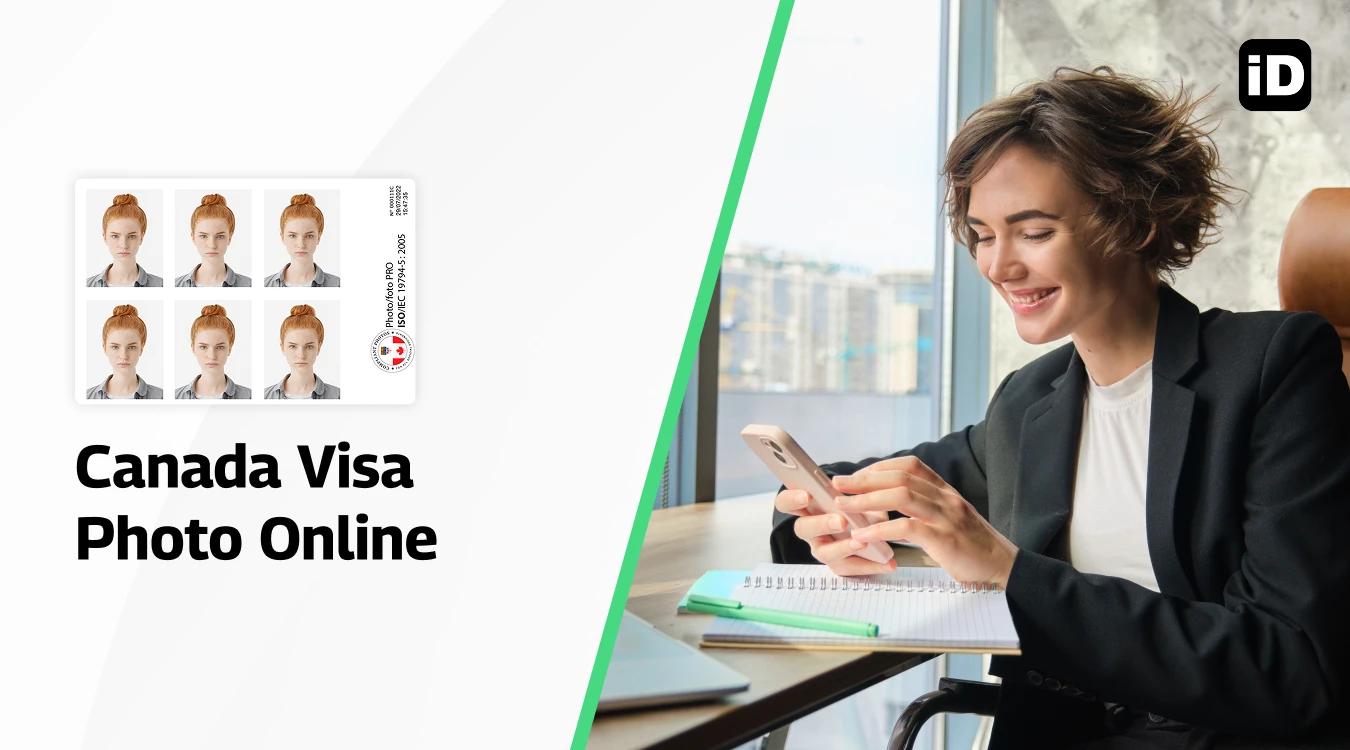
Quick read - for people in a hurry
- Canadian visa photos must follow strict rules (35×45 mm, plain white background, neutral expression, no edits).
- Digital requirements: JPEG format, min. 420×540 px, max. 4 MB file size.
- Smartphone iD app is the easiest option—guides, resizes, and verifies photos.
- Upload via IRCC portal when submitting your online visa application.
Are you looking for the best app or website generator to get a Canadian visa photo approved quickly?
The photo is an important step to getting your application accepted if you want to get a Canadian visa. However, only some have time to book an appointment or visit a local photo studio to have the photo taken.
Therefore, in this article, we will provide you with a selection of solutions and tips for having your visa photo taken online.
Last update: 09/30/2025
Table of contents
1. What are the requirements for a Canada visa photo?
4. How to upload a digital photo for a Canada visa (to the Canadian visa application website)?
2. How to take a Canada Visa Photo Online?
6. A comparison between Smartphone iD app and other Canadian visa photo providers
7. How to take your Canada Visa Photo Online using your phone?
What are the requirements for a Canadian visa photo?
The Canadian government has set out several guidelines that must be followed for a photo to be accepted. Here are some tips to keep in mind when having the photo taken:
Number of photos: Two identical photos required for most applications
Color: Color photos only (black and white not accepted)
Print quality: High resolution, clear, and in sharp focus
Background: Plain white or light-colored background with no patterns or shadows
Size and Format
Physical Print Requirements
- Paper Dimensions: 35 mm (width) × 45 mm (height)
- Head Size: 31–36 mm from chin to crown
Digital File Requirements
- Pixel Dimensions: Minimum 420 × 540 pixels
- Head Size (pixels): 372–432 pixels from chin to crown
- File Format: JPEG or JPEG2000
- File Size: 240 KB recommended, 4 MB maximum
Technical Requirements
- Photo must be printed on high-quality photo paper with a matte or semi-matte finish
- No digital alterations or filters applied
- Consistent lighting across the entire photo with no shadows on face or background
- No glare, reflections, or red-eye
- Photo must be recent (taken within the last 6 months, though some sources state 12 months)
Face and Expression
- Face forward, looking directly at the camera
- Neutral expression with mouth closed (no smiling, frowning, or raised eyebrows)
- Both eyes must be open and clearly visible
- Face must be fully visible from the top of the head to the bottom of the chin
- No hair covering your face or eyes
Eyes and Glasses
- Eyes must be open and clearly visible
- Looking straight at the camera
- Glasses: Generally not recommended, but if worn:
- Frames must not cover any part of your eyes
- No glare on lenses
- No tinted or colored lenses
- No sunglasses under any circumstances
Head Coverings and Accessories
- Head must be uncovered, except:
- Religious head coverings are permitted if worn daily for religious reasons
- Head covering must not obscure facial features from bottom of chin to top of forehead
- Face must be fully visible from hairline to chin
- No hats, headbands, or decorative hair accessories (unless for religious reasons)
- No wireless hands-free devices or headphones visible
Clothing
- Avoid wearing white or very light-colored clothing that may blend with the background
- No uniforms (unless required for religious reasons)
- Clothing should represent your everyday appearance
Photo Quality Standards
- Clarity: Image must be in focus with no blurriness
- Age: Photo must accurately represent your current appearance (taken within 6 months)
- Authenticity: No retouching, filters, or digital alterations
- No creases, marks, or damage to the photo
- Photo must not be taken from an existing photo or digital screen
The Smartphone iD app provides an easy-to-use and in-app guide to assist in the photo process. As a result, you can take your photo without the worry of it not passing the government inspection.
How to upload a digital photo for a Canadian visa?
- Take your visa photo using Smartphone iD (ensuring it meets all Canadian requirements)
- Get an invite code and create an account at the IRCC Portal (portal-portail.apps.cic.gc.ca)
- Sign in to your IRCC Portal account
- Complete the online application form - Answer all required questions about your visit
- Upload required documents - After completing the form, you'll receive a personalized document checklist showing what documents you need to upload, including your digital photo
- Upload your photo - Click on the photo upload field in your document checklist and select your digital photo file (typically JPEG or PDF format)
- Pay the application fee using a credit card
- Submit your complete application
Important Notes:
- The photo is uploaded as part of the initial application process, not separately
- File format requirements vary but typically accept JPEG, PDF, or PNG files
- There are file size limits (check the portal for current limits)
- You cannot upload additional documents after submission unless IRCC specifically requests them
How to take a Canada Visa Photo Online?
If you want to have a visa photo taken online, you will need to find a passport photo app or website generator that allows for this service. The website generator must meet all of the requirements for a proper visa photo to be accepted by the Canadian government. Nonetheless, here is a list of some of the free and affordable price options to choose from:
What are some free tools?
- idphoto4you: This is an online photo tool that will offer free services for your visa photo. It comes with a step-by-step guide and some additional features to help with taking your photo.
What are the affordable tools?
- Smartphone iD: Smartphone iD is an app that lets users take their passport or visa photo from home. It can be used online or downloaded from the iOS or Android app stores, and it ensures your photo will meet the visa application requirements.
We recommend Smartphone iD app as the best choice for taking a high-quality photo that will meet any requirements. The app is easy to use, affordable and offers the option to have the visa photo professionally printed and shipped to your home address.
A comparison between Smartphone iD app and other Canadian visa photo providers
Feature | CAA | Shoppers Drug Mart | London Drugs | Smartphone iD |
|---|---|---|---|---|
Compliance Guarantee | Yes | Yes | Yes | Yes |
Convenience | Membership benefits; multiple locations | Widely available; select locations | Available in Western Canada; select locations | Accessible via smartphone; no physical visit required |
Cost | Members: $8.50–$24.99; Non-members: $19.99–$40.00 | Approximately $19.99 | Approximately $14.99 | Competitive pricing |
Data Security | High; handled by trained staff | High; handled by trained staff | High; handled by trained staff | High; uses secure app technology |
Customer Experience | Positive; known for quality service | Positive; convenient in-store experience | Positive; utilizes advanced biometric technology | Positive; user-friendly app with compliance checks |
Accessibility | Multiple locations; primarily for members | Numerous locations across Canada | Locations in Western Canada | Available wherever you have smartphone access |
Working Hours | Standard business hours; varies by location | Typically 8:00 am–10:00 pm; varies by location | Varies by location | 24/7 availability |
Appointments | Not required | Recommended to call ahead; varies by location | Not required | Not applicable |
Refund Policy | Satisfaction guarantee; will retake photos if not accepted | Satisfaction guarantee; policies may vary by location | Will retake photos if not accepted | Money-back guarantee if photos are not accepted |
How to take your Canadian Visa Photo Online using your phone?
The easiest and most affordable way to get your digital visa photo is to take it yourself at home using the Smartphone iD app.
Use Smartphone iD - Available online and on Apple App Store or Google Play Store. Get 100% compliant photos in minutes.
Step-by-Step Process
#1: Open the Smartphone iD app and click the "Take a Photo" button
#2: Take the photo using your mobile device while following the in-app instructions
#3: Select "Canada" as the country when creating the photo
#4: Select "Visa" as the document type
#5: Choose your delivery option: email the digital photo to your inbox and have it professionally printed and shipped to your home address.
Benefits of Using Smartphone iD
- Automatically edits and resizes the image to meet Canadian visa requirements
- Affordable passport photo service taken from the comfort of your home
- Quality assurance - all photos are examined and verified for compliance
- Flexible delivery - receive your photo digitally via email or as professional prints delivered to your address
- Guaranteed acceptance - photos meet government standards
Summary
The most efficient and secure way of having your visa photo taken is through the Smartphone ID app. It offers low prices, and expert and Ai verification alongside a 24/7 support team to ensure that you get your photo by the smoothest possible.
FAQ
What is the digital photo size for a Canadian visa?
Dimensions: Minimum 420 × 540 pixels
Format: JPEG or JPEG2000
File size: Maximum 4 MB (240 KB recommended)
Can I scan photo for Canada visa?
No, you want the photo to be printed on high-quality paper. The Smartphone iD app can professionally print Canadian visa photos on high-quality paper and ship them to your address.
Can I take my own photo for a Canadian visa?
Yes, the Smartphone iD app allows users to take a Canadian visa photo from home using their smartphone device.
How can I take a visa photo at home?
Yes, the Smartphone iD app is compatible with IOS or Android devices. It can then be used to take a visa photo online without needing to visit a physical store location.
How do I take a digital visa photo?
You can take a Canadian digital visa photo at home using a smartphone or camera, as long as it meets the official requirements (35×45 mm, taken within 12 months, neutral expression, plain white background, no shadows). Apps like Smartphone iD can guide, resize, and validate your photo to ensure government approval.
Is visa photo different from passport photo?
Yes, a visa photo is generally smaller than a passport photo. An app like Smartphone iD will ensure that the picture taken meets your countries requirements.
How much does visa photo cost?
The cost of a visa photo will depend on the store where you have It taken. The cheapest alternative is to use the Smartphone iD app for all visa, ID, or passport photos.
Sources
https://www.canada.ca/content/dam/ircc/migration/ircc/english/pdf/photospecs-e.pdf


.bbc9bc36.svg)