How to change the background in your passport photo: a step-by-step guide
Key Points Summary
- Manual editing of passport photo backgrounds often leads to rejections due to inconsistencies in lighting and shadows
- Indian passport and visa photos require a pure white background to meet official standards
- Photos must be precisely sized to 2×2 inches (51×51 mm) for Indian passport applications
- The Smartphone iD online tool uses AI to automatically adjust backgrounds and dimensions to ensure compliance with official requirements
Official documents like passports, visas, and IDs require a passport photo with the correct background color. However, getting the right background can be challenging, especially when taking the photo yourself. In this guide, we’ll show you how to easily change your passport photo background using our AI-powered tool.
Table of Contents
2. How to change Indian passport photo background online?
3. Here’s how to use our tool:
How to change the Indian passport photo background online?
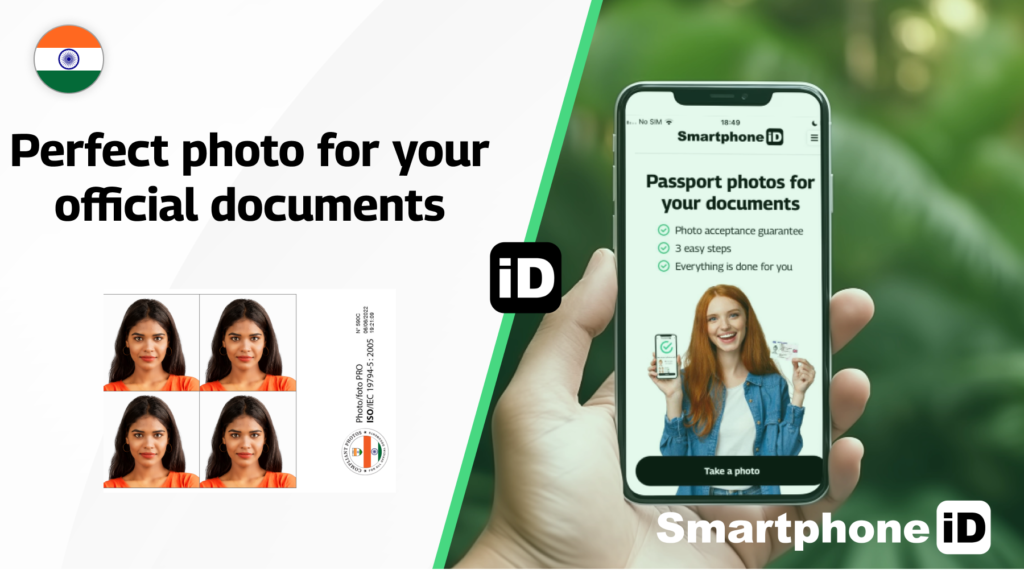
Editing the background of an existing passport photo is not recommended. This is because manual edits can lead to inconsistencies in lighting, shadows, or resolution, which may result in your photo being rejected. Instead, we recommend using our Passport photo Maker Smartphone iD to take a new photo. Our AI automatically removes the existing background and replaces it with the required color, and gives you a preview to ensure compliance.
Here’s how to use our tool:
- Open our online passport photo tool.
- Take a clear, well-lit photo following passport guidelines.
- Our AI will automatically detect and remove the background.
- The tool will apply the correct background color based on official requirements.
- You can now download your compliant passport-sized photo.
Frequently asked questions (FAQ)
1. How to resize a photo to passport size?
For the best results, take a new photo using our tool rather than trying to resize an existing one. Simply go to our website to take your photo, and it will automatically be captured at the correct dimensions (2×2 inches or 51×51 mm for Indian passports).
2. How to make a background white for a passport photo?
A white background is mandatory for Indian passport photos. While you can use editing tools like Photoshop or Canva, these methods often require technical skills and may not meet official standards. Our tool simplifies the process by automatically detecting and replacing the background with a purely white one.
3. What is the background color of an Indian passport photo?
The background color for Indian passport photos must be white. This is a strict requirement to ensure clarity. Using any other color may result in your application being rejected.
4. Which app is best for changing the background of a photo?
While apps like Canva and Google Photos offer background removal features, they are not ideal for passport photos. These tools may not meet the strict standards required for official documents. The Smartphone iD tool is specifically designed for passport photos, ensuring compliance with all guidelines.
5. Can I edit the background of a passport photo?
Yes, you can edit the background of a passport photo, but it’s not recommended unless you’re using a reliable tool like ours. Manual edits can lead to errors, such as uneven lighting or incorrect dimensions, which may cause your photo to be rejected.
6. Are there AI tools available to automatically adjust my passport photo background?
Yes, the Smartphone iD tool uses advanced AI to automatically detect and adjust your passport photo background. It removes the existing background and replaces it with the required color.
7. What is the background color for Indian visa photos?
The background color for Indian visa photos is also white, just like passport photos. This ensures consistency across all official documents.
8. Can I use tools like Canva or Google Photos to edit my passport photo background?
While tools like Canva and Google Photos offer background removal features, they are not recommended for editing passport photos. These tools may not meet the strict requirements for official documents, such as precise dimensions and lighting. Our tool is specifically designed for passport and visa photos, ensuring full compliance.
9. How can I Photoshop the background of a passport photo?
If you prefer using Photoshop, here’s how to change the background:
- Open your photo in Photoshop.
- Use the “Magic Wand” or “Quick Selection” tool to select the background.
- Delete the existing background and replace it with white.
- Adjust the lighting and shadows to ensure uniformity.
- Resize the photo to 2×2 inches or 51×51 mm.
Sources
https://www.cgitoronto.gov.in/docs/1626187593Photograph%20Guidance%20for%20Applicants.pdf


.bbc9bc36.svg)